
Assigning courses to your team
Assigning courses to your team
An assignment is how you tell your team that a specific course is required. Assigned members are enrolled in the course automatically and receive an email letting them know. You can then watch completion from one screen instead of chasing people individually.
The Course Assignments page
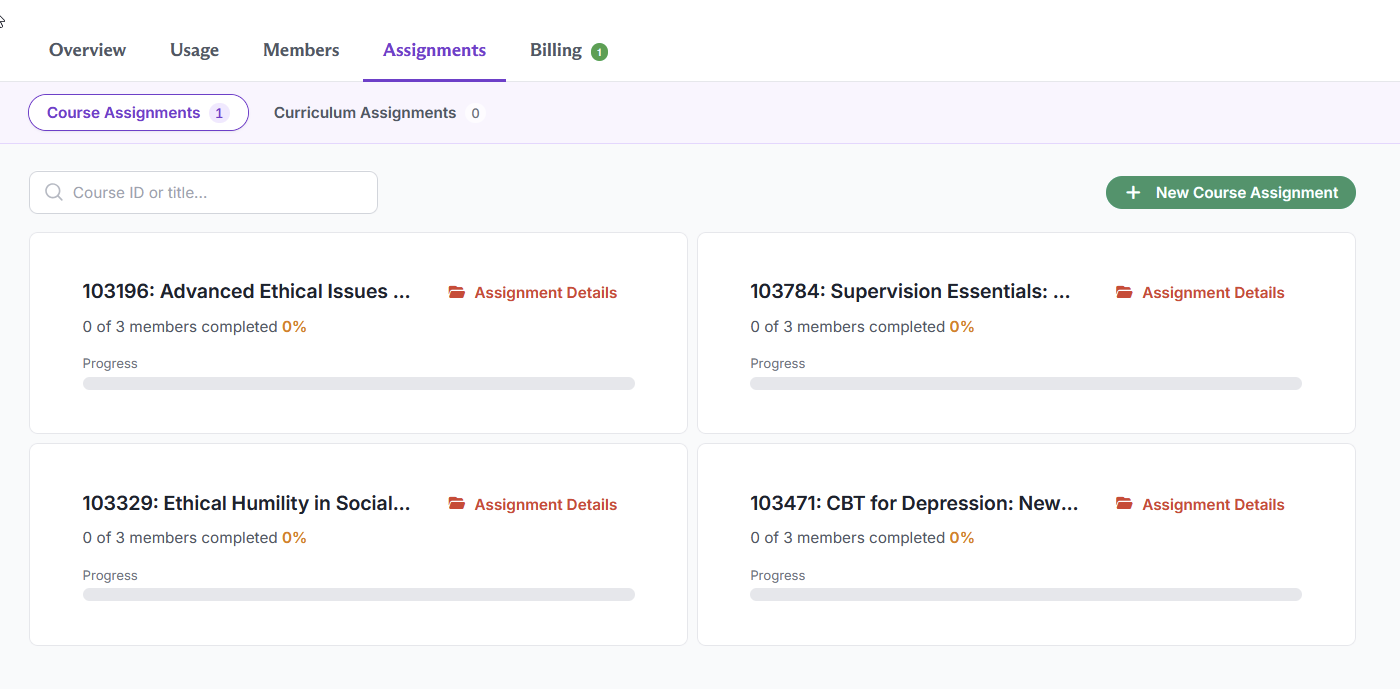
Every assignment your team has created appears here as a card showing the course ID and title, a completion count such as "1 of 4 members completed", a percentage, and a progress bar. The search box at the top filters by course ID or title.
If a card shows no members, nobody has been assigned to that course yet.
Assignment Details on each card opens the full record for that assignment.
Creating an assignment
- Click + New Course Assignment.
- Search for the course by ID, title, or keyword, then select it.
Screenshot placeholder New Course Assignment window, first step, showing the "Course ID, Title, or Keyword" search box
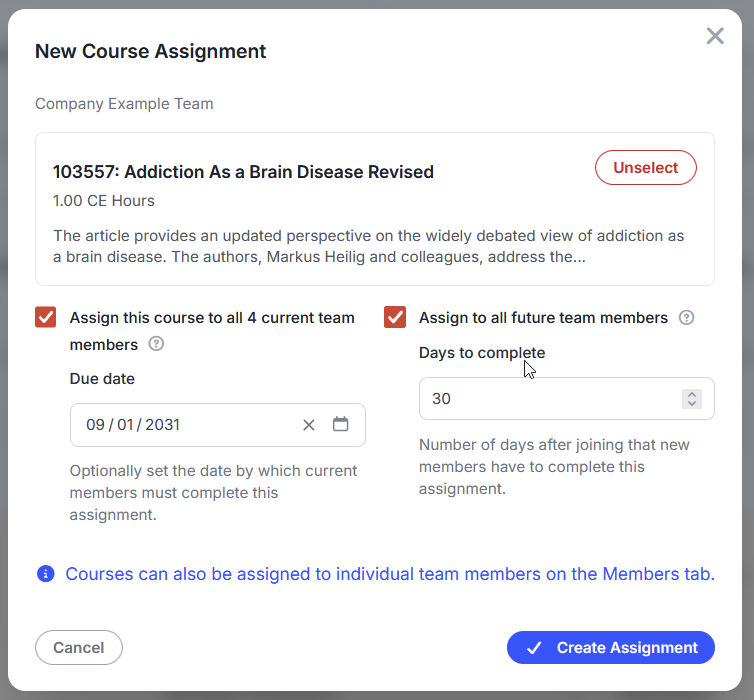
- The course appears in the window with its CE hour count and description. If you picked the wrong one, click Unselect and search again.
- Choose who the assignment applies to. This is the part worth slowing down for, and it is covered in the next section.
- Optionally set a Due date.
- Click Create Assignment.
Choosing who gets the assignment
Two checkboxes control who an assignment reaches, and they do different jobs.
Assign this course to all current team members. Applies the assignment to everyone on your team right now. The checkbox tells you the count, for example "Assign this course to all 4 current team members."
Assign to all future team members. Applies the assignment to people who join later. This one only affects future joiners. It does nothing to the people already on your team.
The two are independent, which gives you four useful combinations:
- Both checked. Everybody, now and going forward. This is what you want for annual required training that every new hire also has to take.
- Current only. A one time push to the people you have today.
- Future only. New hire onboarding. Existing staff are left alone.
- Neither. Creates the assignment without assigning anybody. Use this when you want to hand pick recipients from the Members tab instead.
Setting a due date
The Due date field lets you set the date by which current members must complete the assignment. It is optional, and it applies to current members.
Assigning to specific people instead
You do not have to assign to the whole team. There are two ways to assign a course to a subset of people, both on the Members tab.
Several people at once. On the Team Members page, tick the checkbox next to each person you want, then choose Assign course from the Bulk Actions menu.
One person. Open a member's record from the Details column, then click + Add Assignment in their Course Assignments section.
These are also how you add people to an assignment that already exists. Select the people you want on the Members tab and assign them the same course.
What the member sees
When a course is assigned to somebody, two things happen. They are enrolled in the course, so it is waiting for them without any action on their part, and they receive an email letting them know it has been assigned.
Tracking completion
Open Assignment Details on any assignment card.
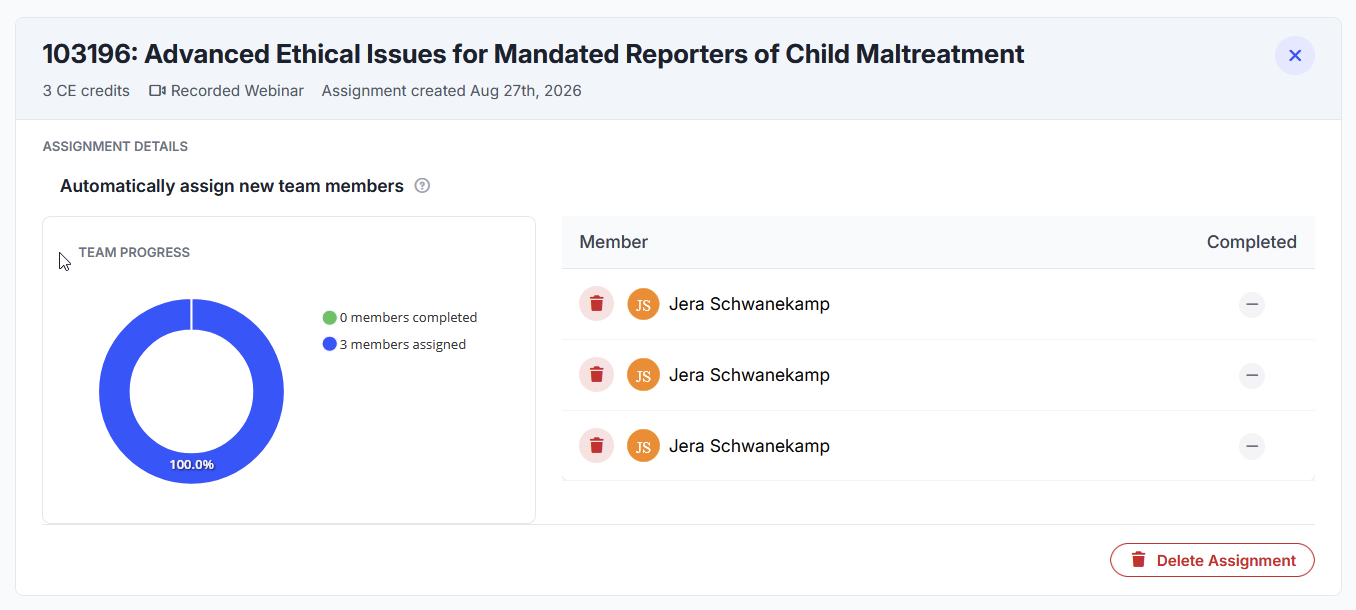
The page shows:
- Course header. CE credits, course format such as Recorded Webinar, and the date the assignment was created.
- Automatically assign new team members. The same setting as the "assign to all future team members" checkbox on the creation window. You can change it here after the fact.
- Team progress. A donut chart splitting members who have completed the course from members who are still assigned, with the percentage.
- Member list. Every assigned member with a completion column. A checkmark means done, a dash means not yet.
Removing an assignment
To unassign one person, click the trash icon next to their name on the Assignment Details page, or on the row in their member record.
To remove the assignment entirely, click Delete Assignment at the bottom of the Assignment Details page.
Note: Deleting an assignment does not take anything away from members who already finished the course. Their completion stays in their completed courses tab, and their credit stays in your usage report.
Questions? Comments?
We're here to help. Contact us using the Help icon at bottom-right of the page, call our live support at 1-888-459-1680 M-F 7:00 AM PST - 4:00 PM PST, click this link to Contact Us or email us at [email protected]. We have staff ready to assist you!