
Usage reports and expiring licenses
Usage reports and expiring licenses
Two pages in the team area exist to answer questions from outside your team: what training did our people actually complete, and whose license is about to lapse. This article covers both.
Usage Report
The Usage Report page shows what your team has earned, in two charts.
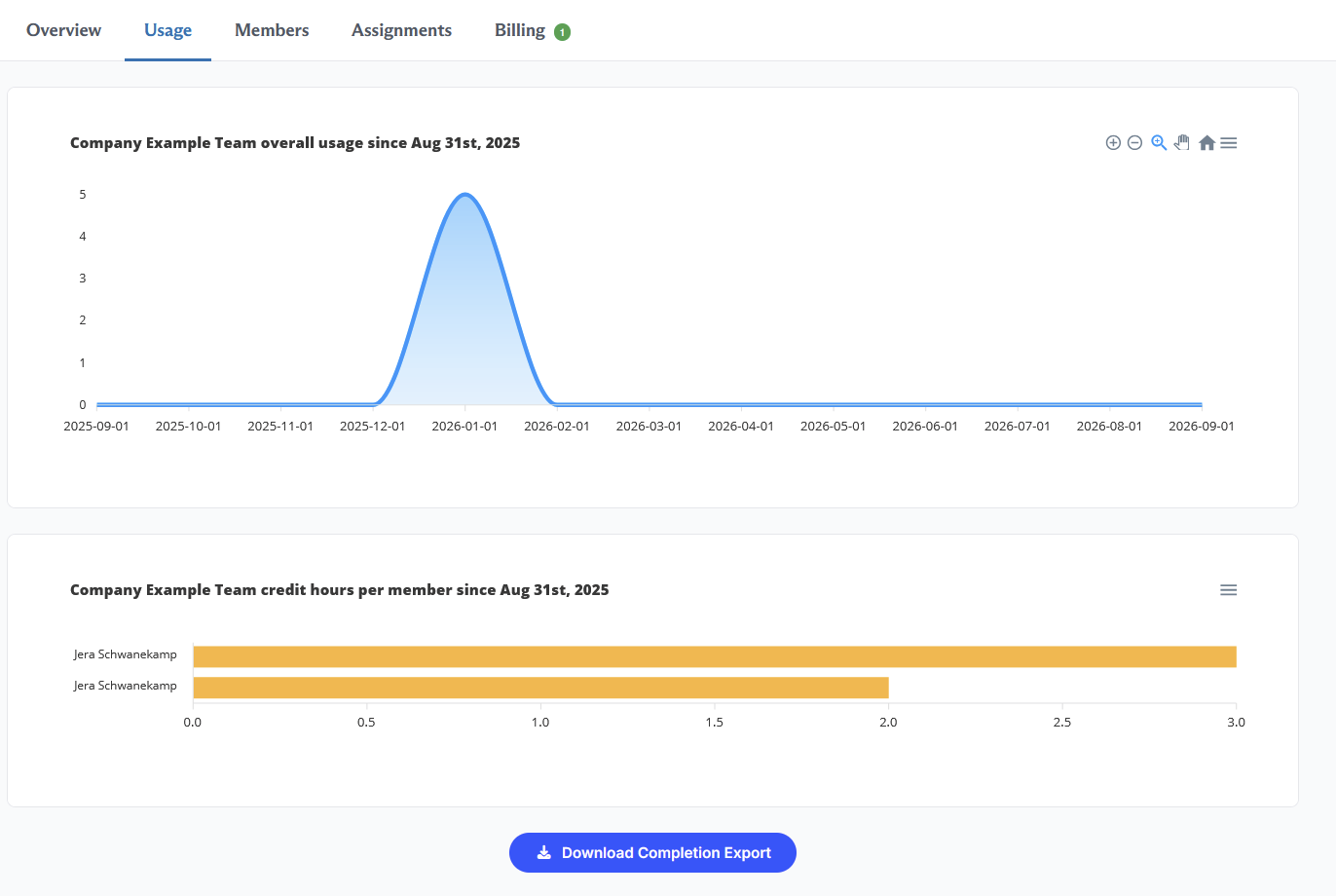
Overall usage. A line chart of credit hours earned per month across the whole team, starting from the date shown in the chart title. Use it to see when your team actually does its CE, which for most organizations turns out to be a spike right before a renewal deadline.
Credit hours per member. A bar chart of credit hours earned by each individual member over the same period. Use it to spot who is well ahead and who has not started.
Downloading the completion export
Download Completion Export at the bottom of the page gives you a spreadsheet of individual completions rather than totals. Each row is one course completion, with four columns:
- Team Member. Who completed it.
- Course. The full course title.
- Date. The completion date.
- Credit Hours. Credit earned for that course.
This is the file to send when somebody asks for proof of training. It is a plain spreadsheet, so you can filter it by person, by date range, or by course.
Note: Completions stay in the usage report after a member is removed from your team. Your training record does not disappear when somebody leaves.
Expiring Licenses
The Expiring Licenses under your members tab is a standing to do list. It shows team members whose professional license is due to expire within the next 30 days, and team members who have no expiration date entered at all.
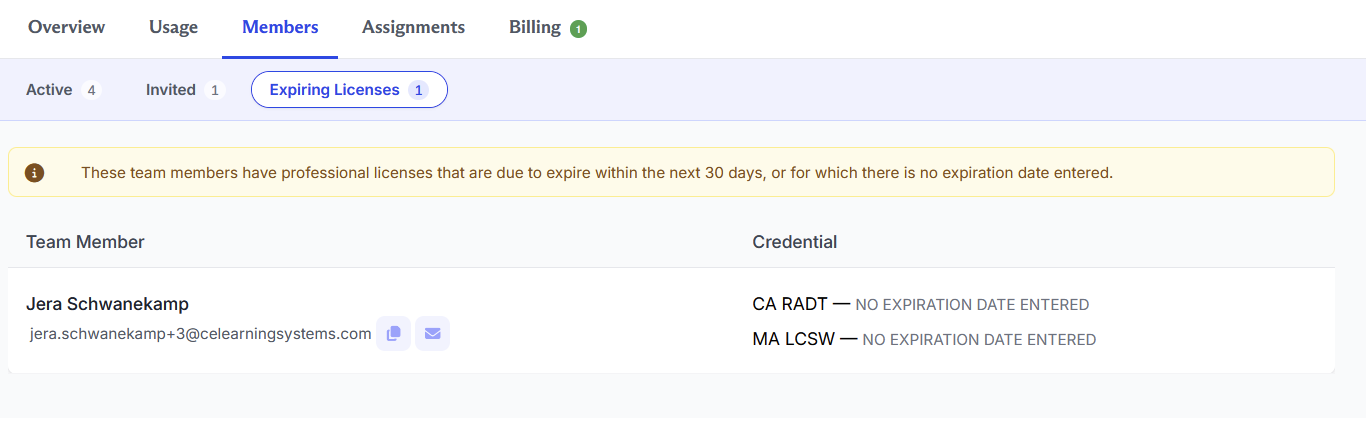
Each row shows the member, their email address, and the credentials in question with the expiration status. The copy and envelope icons next to each name let you copy their email address or email them directly.
In practice most of what lands on this page is the second category, members who never entered an expiration date. That is worth clearing out, because a member with no date on file will sit on this list permanently and will bury the people whose licenses are genuinely close to lapsing.
Note: Only the member can enter or update their own license information. A team administrator cannot do it for them. Clearing this page means emailing the people on it and asking them to add their renewal dates.
Where credential information comes from
Both of these pages, and the Credential column on the Team Members page, draw from what each member has entered on their own account under their licenses and certifications. Nothing on these pages is something you can edit as an administrator.
If your team is new and these pages look empty or incomplete, that is expected. It fills in as your members add their license details.
Questions? Comments?
We're here to help. Contact us using the Help icon at bottom-right of the page, call our live support at 1-888-459-1680 M-F 7:00 AM PST - 4:00 PM PST, click this link to Contact Us or email us at [email protected]. We have staff ready to assist you!