
Enabling Two-Factor Authentication
You can improve the security of your Impact CE account with Two Factor Authentication (2FA), using either SMS (text message) or an authenticator app (1Password, Google Authenticator). This helps prevent unauthorized access to your account by adding an additional layer of security.
How to Enable 2FA
1. On desktop/laptop devices, click your name at top right and select Password and Security. On mobile devices, tap the app menu at top right, then Your Account, then Password Security.
 2. On the security tab, click the Enable Two-Factor Authentication button.
 3. A pop-up will show, asking for your password. If you don't use a password, click the I don't know my password link. That will email you a code to enter instead.

 4. Next, click either Authenticator App or Text Message (SMS). For most users, Text Message is best. We'll assume you're using Test Message for the rest of this article. If you're using an authenticator app, you'll know how to proceed with the remaining steps.
 5. When you click Text Message, you'll be prompted to enter your mobile phone number. Enter your number and click Send Code. The system will send you a text containing a code.
 6. Enter the code, the click the Verify & Enable button.
 7. Once you've entered the code successfully, you'll be given a set of codes. These will allow you to access your account in the event that you lose access to your phone. We suggest you save them somewhere safe, or even print them out. To proceed, you must click either Copy to Clipboard or Download. Then a continue will appear. Click that, and you'll be back on the Security tab.
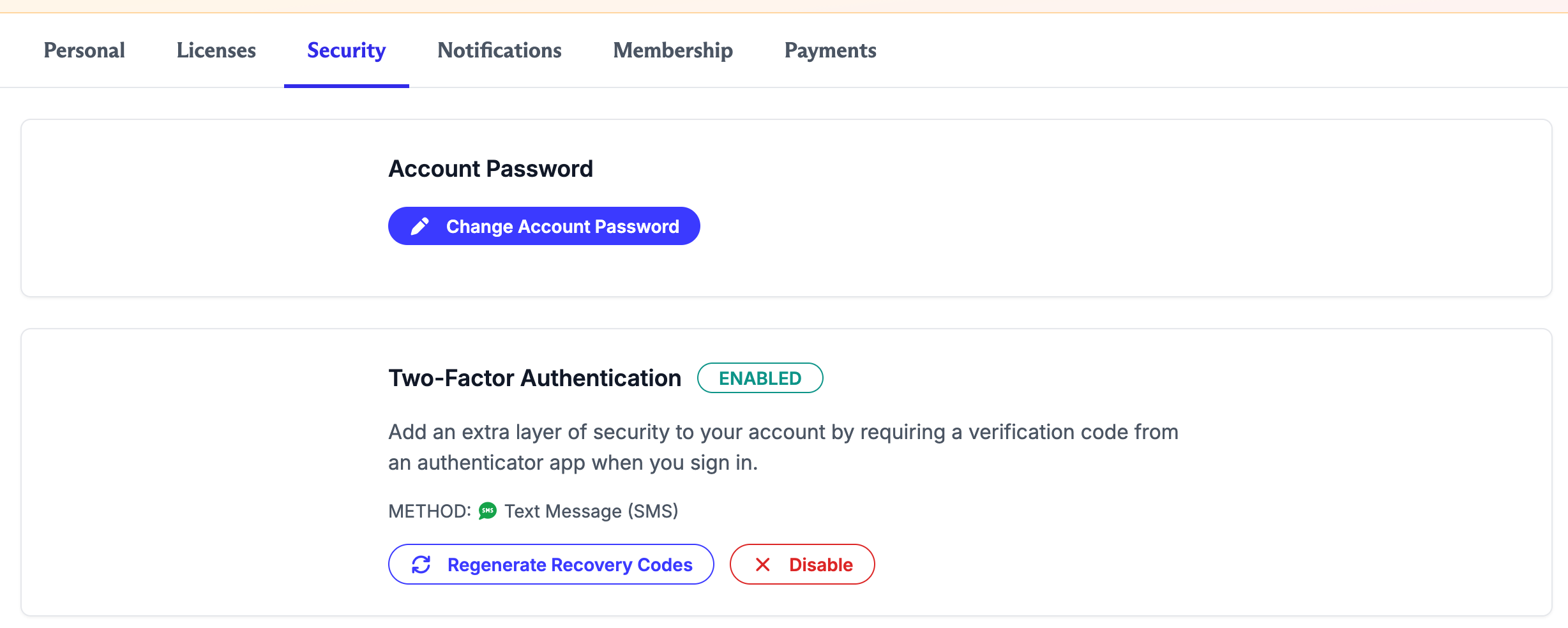
 8. You'll now see that 2FA is enabled for your account.
 How To Disable 2FA
 How To Disable 2FA
1. On desktop/laptop devices, click your name at top right and select Password and Security. On mobile devices, tap the app menu at top right, then Your Account, then Password Security.
2. Click the Disable button under Two-Factor Authentication. You'll be prompted to confirm your choice.
 3. Click the red Disable button. 2FA is now disabled.