
Inviting people to your team
Inviting people to your team
There are three ways to get people onto your team: an invitation email, a team join link, or a bulk spreadsheet import handled by our staff. This article covers all three, plus how to manage invitations you have already sent.
Start an invitation
Click + Invite Member. You will find this button in the top right of both the Team Members page and the Invitations page.
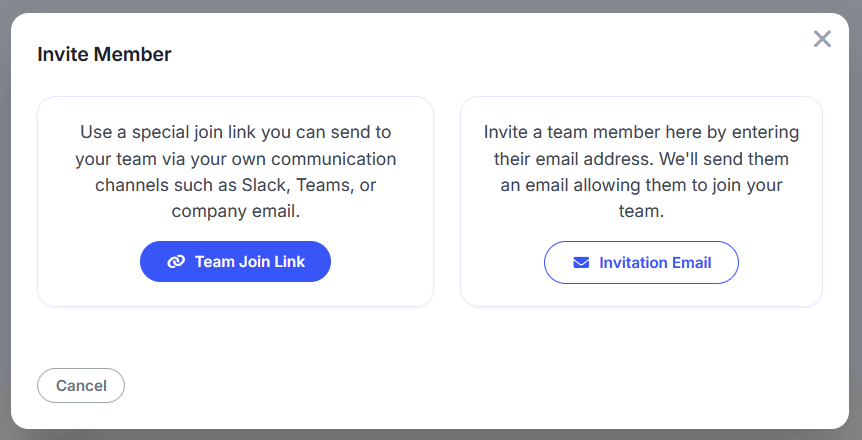
The Invite Member window offers two paths.
Option 1: Invitation email
Choose Invitation Email when you are adding people one at a time and you know their email addresses.
Screenshot placeholder Invitation Email window showing Invitee First Name, Invitee Last Name, Email, the Role dropdown, and the Automatic Removal toggle
- Enter the invitee's first and last name. Both are optional, but filling them in personalizes the email.
- Enter their email address. This is required.
- Choose a Role. The default is Team Member, which is correct for most people. See Team roles and permissions if you are adding an administrator.
- Set Automatic Removal if you want it. See the section below.
- Click Send Invitation.
We send a personalized invitation email on your team's behalf. If the person already has an ImpactCE account under that email address, accepting adds them straight to your team. If they do not, they will be prompted to create an account first.
Automatic Removal
Automatic Removal is a toggle on the invitation form. Turn it on and the member is removed from your team automatically on a set date, which defaults to one year after they are added.
This is useful when you know up front that someone is on a fixed term. Treatment centers running a one year course load for a cohort often use it, so the seat frees up on schedule without anybody having to remember.
Option 2: Team join link
Choose Team Join Link when you would rather distribute one link through Slack, Teams, or a company email than enter addresses one at a time. Anyone who signs up through your link is added to your team automatically.
A few things worth knowing about the join link:
- It does not expire. Once you generate it, it keeps working.
- It only consumes a seat when somebody actually joins through it. Sharing the link costs you nothing.
- It cannot be restricted by email domain. Anybody who has the link can use it, so treat it as you would any internal link you do not want forwarded outside the organization.
Option 3: Bulk spreadsheet invites
If you are onboarding a large group, we can import them from a spreadsheet in one pass rather than making you enter them individually. Contact us using any of the methods at the bottom of this article and we will set it up.
Managing invitations you have sent
The Invitations page lists every invitation that has been sent and not yet accepted, with the invitee's email, the date it went out, and who sent it. Use the search box to find a specific person by name or email.
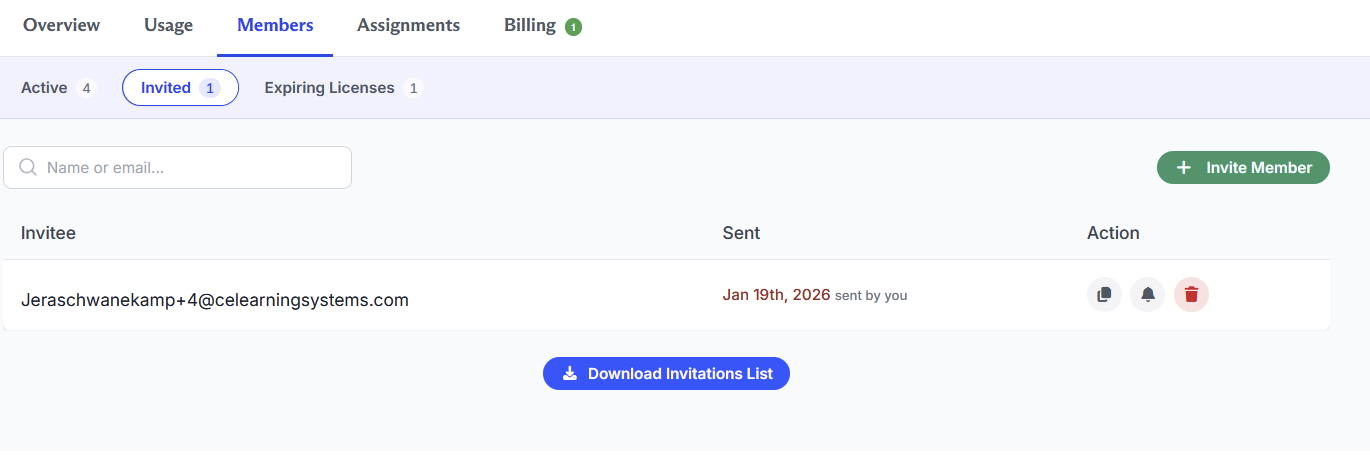
Three actions sit at the right of each row:
- Copy invite link: Copies the invitation link for that specific person, so you can paste it into a chat or a separate email. This link is tied to that invitee and is not the same as your general team join link.
- Send reminder email: Resends the invitation. Useful when the first one got buried or filtered.
- Cancel invitation: Deletes the pending invitation. The link stops working.
Download Invitations List at the bottom of the page gives you a spreadsheet of everyone with an outstanding invitation.
Note: A pending invitation consumes a seat.
Questions? Comments?
We're here to help. Contact us using the Help icon at bottom-right of the page, call our live support at 1-888-459-1680 M-F 7:00 AM PST - 4:00 PM PST, click this link to Contact Us or email us at [email protected]. We have staff ready to assist you!