
Team billing, invoices and renewals
Team billing, invoices, and renewals
Everything financial lives on the Billing page, reachable from More Billing Details on your Settings & Account page. This article covers how team billing works, what is on the page, and what happens if an invoice goes unpaid.
How team billing works
Team seats are billed annually, on the same date every year. We offer monthly billing by request only, so unless you have arranged otherwise with us, your team is on an annual cycle.
Your renewal date is fixed. It does not shift when you add people or change your seat count.
When you add seats partway through a cycle, the cost is prorated. If you add staff six months into your annual cycle, you pay for half the value of the seats added, not a full year.
Three seats is the minimum for any team.
What is on the Billing page
Plan and seats
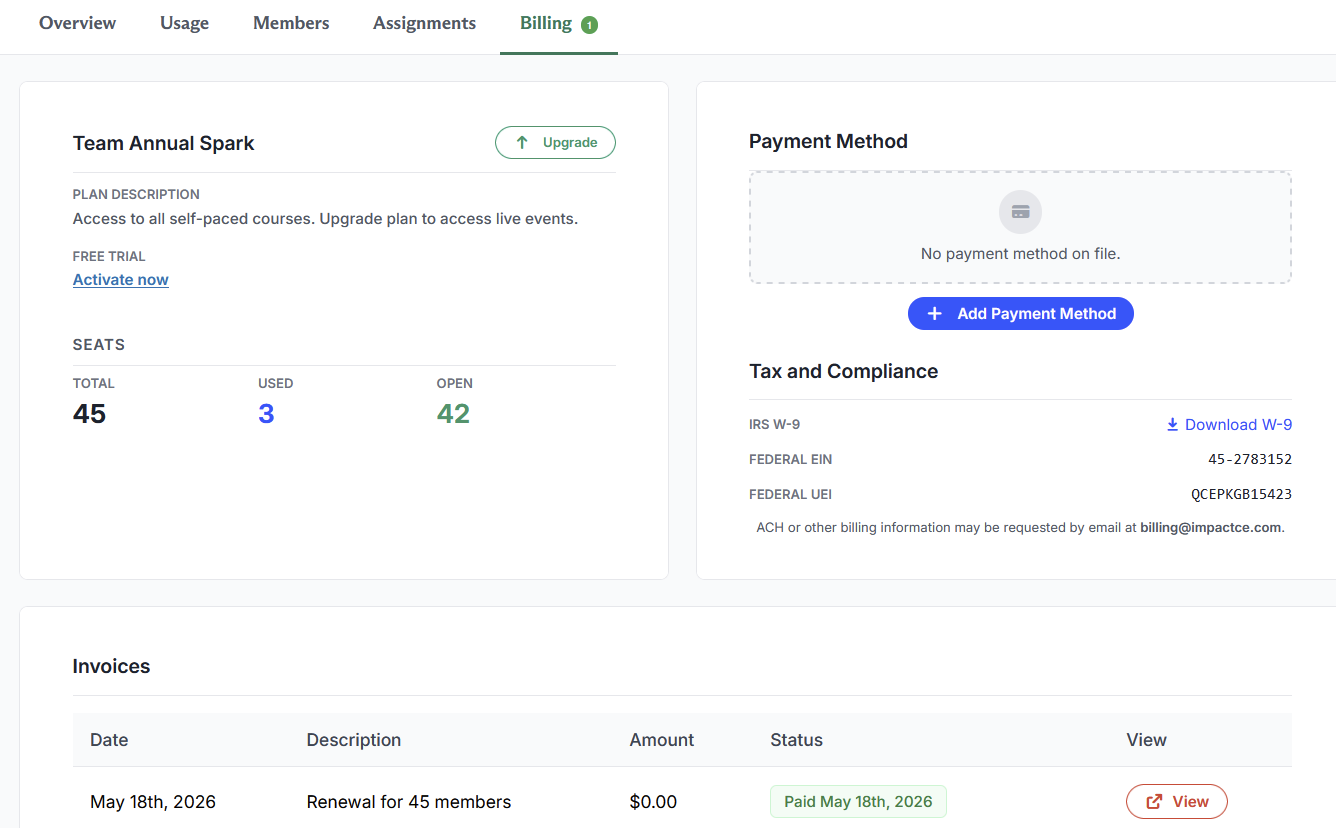
The top of the page repeats what you see on Settings & Account: your plan name, what the plan includes, your renewal date, your renewal seat count with a pencil icon for changing it, and your Total, Used, and Open seat tally.
Renewal seats is the number you will be billed for next year. Click the pencil to change it. If you set it lower than your current member count, some members will not receive a seat at renewal, so check your headcount before lowering it. See How team seats work.
Payment method
If you have no card on file, this section reads "No payment method on file." Click + Add Payment Method to store one.
Screenshot placeholder Billing page payment method section showing the empty state and the Add Payment Method button
Note: A stored card auto-renews. When your renewal date arrives, we charge the card on file for your renewal seat count. If you would rather pay by invoice each year, leave the card off and watch for the invoice email.
Tax and Compliance
This section holds the paperwork your finance department will ask for:
- IRS W-9. Click Download W-9 for a copy.
- Federal EIN. Our federal employer identification number.
- Federal UEI. Our unique entity identifier, which government and grant funded organizations often need.
For ACH details or any other billing documentation, email [email protected].
Invoices
Every invoice your team has ever received is listed with its date, a description such as "Renewal for 45 members" or "10 members", the amount, its status, and a View button that opens the invoice itself.
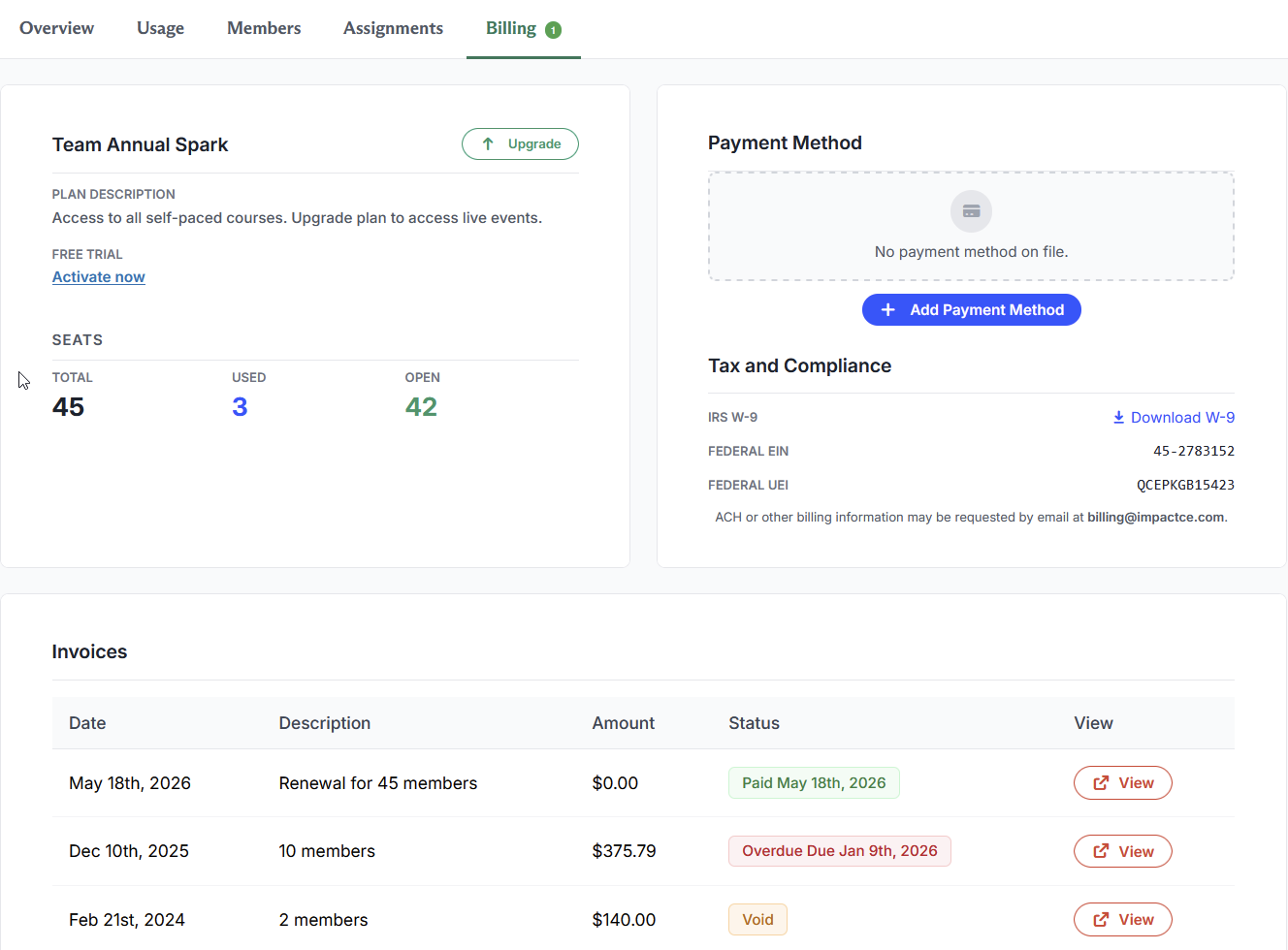
Three statuses appear:
- Paid, in green, with the date payment was received.
- Overdue, in red, with the date it was due.
- Void, in yellow. A voided invoice is one that was cancelled and is no longer owed.
Note: Only ImpactCE staff can void an invoice. If an invoice was issued in error or contains a mistake, contact us and we will void or update it. The Void status then shows on your invoice list so your records reflect that it was cancelled.
Buying more seats
Purchase additional seats from the Billing page. New seats are prorated against your existing cycle, and once the invoice is paid the seats appear in your Open count, ready to assign to members.
If an invoice goes unpaid
An overdue invoice does not cut off your team immediately. There is a 30 day grace period. If the invoice is still unpaid at the end of it, team access is suspended and your members lose course access until the balance is settled.
If you are looking at an overdue invoice and need more time or a different payment arrangement, contact us before the grace period runs out. We would much rather work something out than suspend a team.
Questions? Comments?
We're here to help. Contact us using the Help icon at bottom-right of the page, call our live support at 1-888-459-1680 M-F 7:00 AM PST - 4:00 PM PST, click this link to Contact Us or email us at [email protected]. We have staff ready to assist you!