
How team seats work
How team seats work
Seats are the single most useful thing to understand about a team account. Almost every question that comes into support about teams is really a question about seats. This article explains what a seat is, how the counts work, and what happens at renewal.
What a seat is
A seat is course access. When you assign a seat to a team member, that person gets access to the course library your plan covers, equivalent to an individual Spark or Ignite membership. When they do not have a seat, they can still hold an account and sit on your members list, but they cannot take courses through the team.
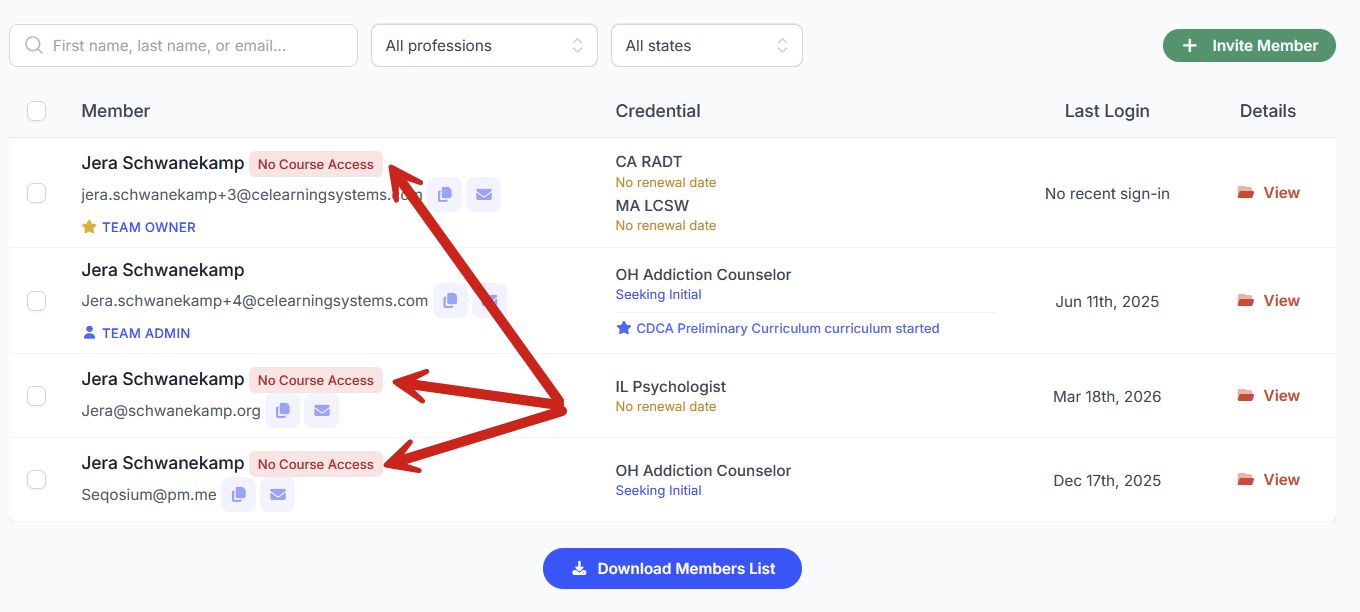
A member without a seat shows a red No Course Access badge next to their name on the Team Members page. That badge is not an error. It simply means no seat is assigned to that person.
Seats are separate from roles
A role says what somebody can administer. A seat says whether they can take courses. They are set independently.
Owners and Admins consume a seat if they are taking courses. If an administrator is purely administrative and will never take a course through the team, contact us and we can set them as admin only so they do not consume a seat.
Reading your seat numbers
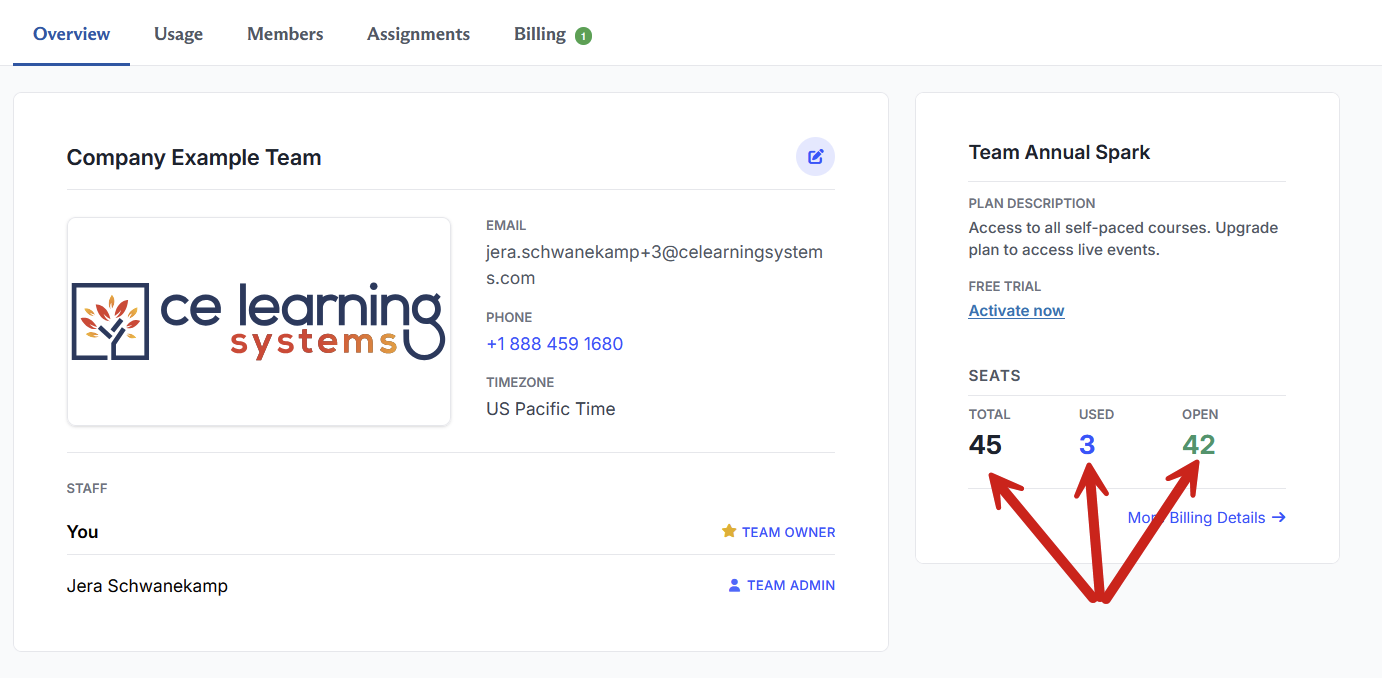
Your Settings & Account page and your Billing page both show the same set of numbers.
Renewal seats is the number of seats that will be billed at your next renewal. Think of it as next year's order.
Seats: Total, Used, Open is what you hold right now.Total is how many seats you have,Used is how many are currently assigned to members, and Open is how many are sitting unassigned and ready to hand out.
Adding and removing seats
To buy more seats, purchase them from the Billing page. See Team billing, invoices, and renewals.
To change what you will be billed next year, click the pencil icon next to Renewal seats and enter the new number.
To lower your headcount, remove members from the team. Removing a member frees the seat.
Note: Three seats is the minimum for any team.
What happens at renewal
At renewal, you are billed for your Renewal seats number, and that many seats are available to assign.
This is the one place where the two numbers can bite you. If your renewal seat count is lower than the number of members on your team, there will not be enough seats to go around, and some of your members will not receive one. Before your renewal date, compare your renewal seat number against your member count and adjust whichever one is wrong.
Removing a member
When you remove somebody from your team, they lose the course access your team was paying for. They keep everything else. Their account stays theirs, their completed courses stay in their history, and their certificates remain available to them.
Expired seats
You may occasionally see a member whose course access shows as expired, with a date, on their member record. This is rare, and doesn't happen with balanced seat use and renewal, but If you see it, the pencil icon on that row lets you assign a seat to restore access. See Managing your team members.
Questions? Comments?
We're here to help. Contact us using the Help icon at bottom-right of the page, call our live support at 1-888-459-1680 M-F 7:00 AM PST - 4:00 PM PST, click this link to Contact Us or email us at [email protected]. We have staff ready to assist you.